
Document template basics
Upload a Word document with placeholders, map those placeholders to file-matter data, and generate a filled document in one click.
What is a document template?
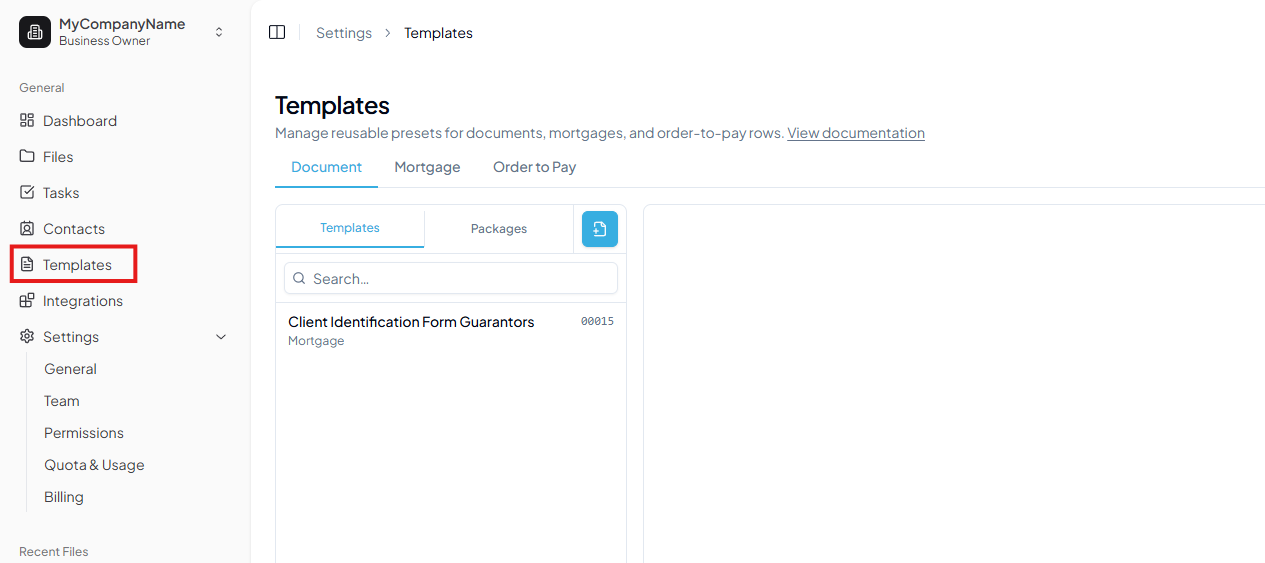
A document template is a .docx file where variable content is marked with placeholders, special tokens the system replaces with real data when you generate a document from a file matter. Templates live at Templates.
The data comes from the file matter. Everything entered under Parties (buyers, sellers, borrowers, guarantors), the property details, mortgage information, adjustment dates, disbursements, and more. Every placeholder in the Word file can be mapped to one of these fields. For a full list of what's available, see the Data reference page.
For large packages, it is recommended to split them into multiple smaller .docx files and upload each as a separate template rather than one giant file.
Placeholder delimiter syntax
Placeholders must be wrapped in a pair of delimiter characters so the system knows where they start and end.
- The default global delimiter is
{placeholder}(curly braces around the name). - Good:
<borrower>Not good:<>borrower(the name must go inside the delimiter characters, not after them). - The sample template used in this guide uses
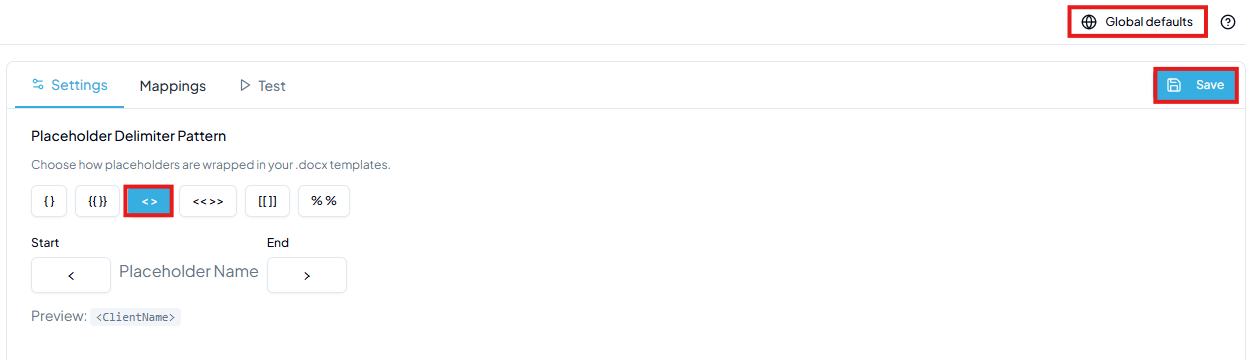
<placeholder>(angle brackets) instead of the default{placeholder}format. This is intentional: it walks you through changing the global delimiter. Before uploading, update that setting first (shown below).
Change the global delimiter by clicking Template settings in the top-right of the Templates page, then opening the Delimiters tab:
Uploading a template
Download the sample file used in this guide and save it to your device:
Client Identification Form – Guarantors.docx
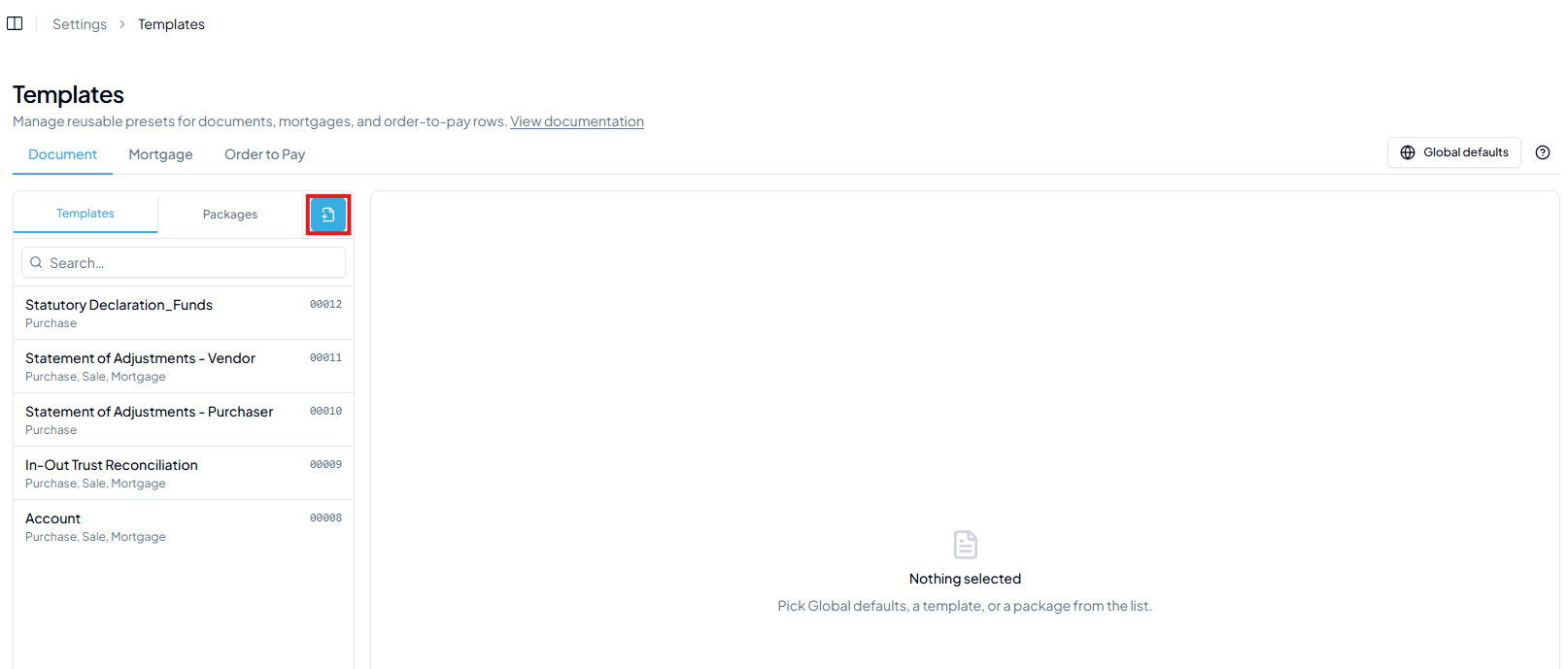
- 1Go to Templates and click the button.
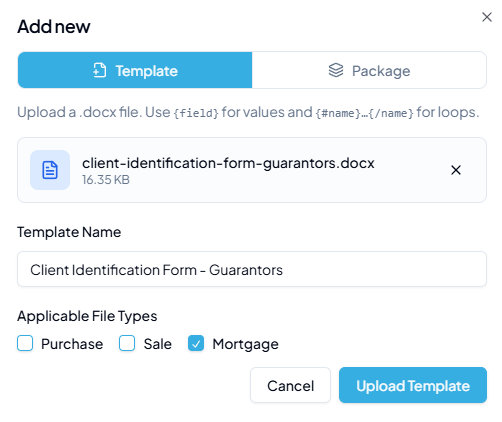
- 2Select your .docx file, give it a name, and pick where it Shows on — the file types it will be offered for (e.g. Mortgage). The same pill control, with the same label, is used everywhere file types are chosen.
- 3Click Upload Template. The system scans the document and detects all placeholders automatically.
Configuring field mappings
Click the template name on the left side and the detected placeholder mappings will appear as one list — fields, sections, and signature blocks as its last group. A placeholder nothing fills yet carries an amber unmapped badge at the right of its row: it will render as blank in the generated document.
A template opens read-only. Choose Edit in the header before changing anything, then Review & save to write the change, or Discard to throw it away.
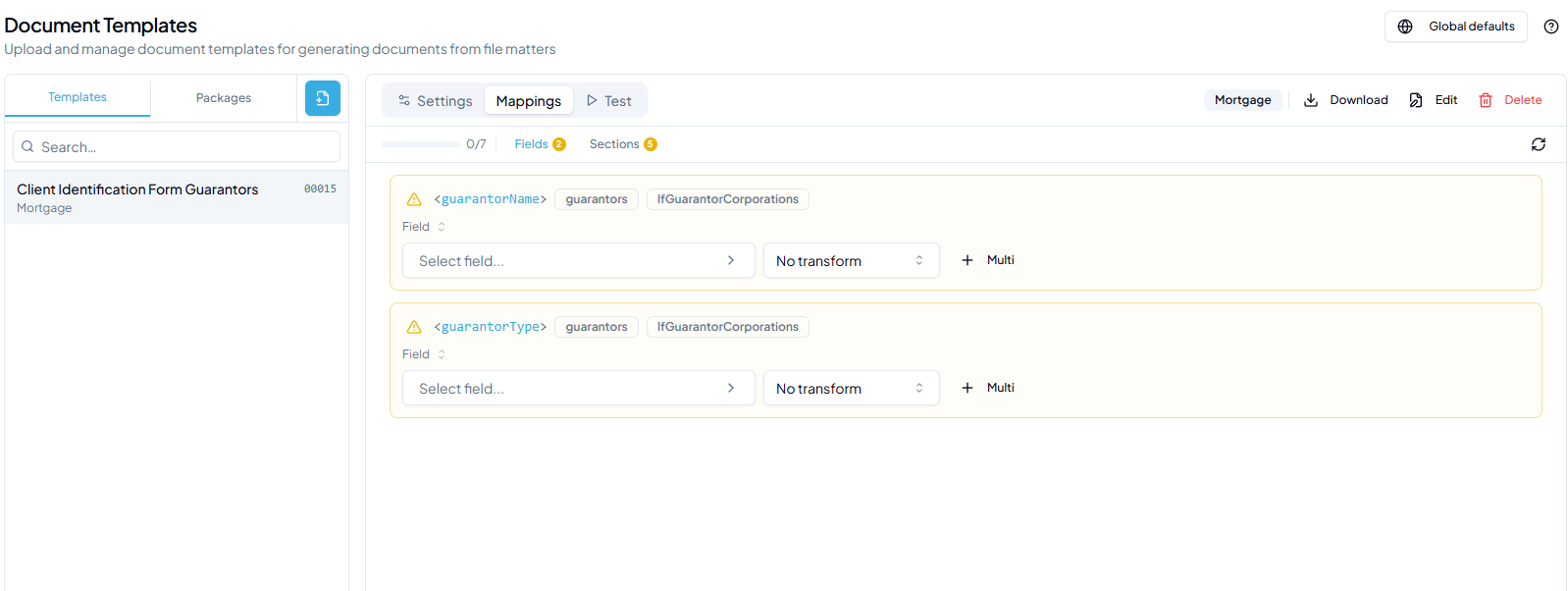
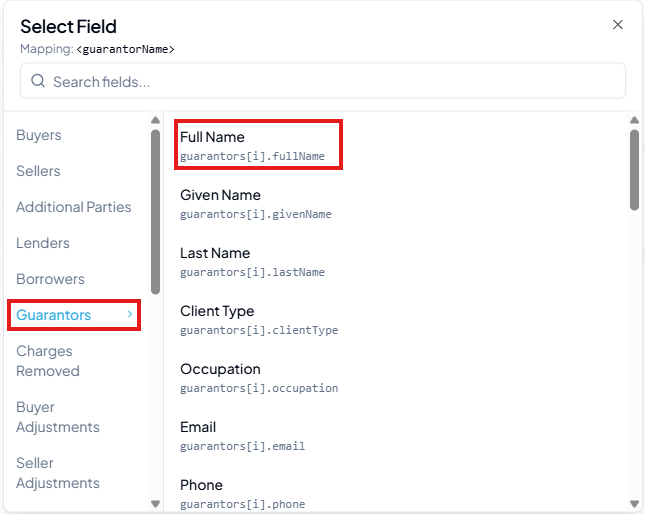
- 1For each unmapped placeholder, click Select field… and pick the corresponding file-matter field (e.g. map
<guarantorName>→ Guarantors → Full Name).
- 2Click Save. The yellow highlight clears when a placeholder is successfully mapped.
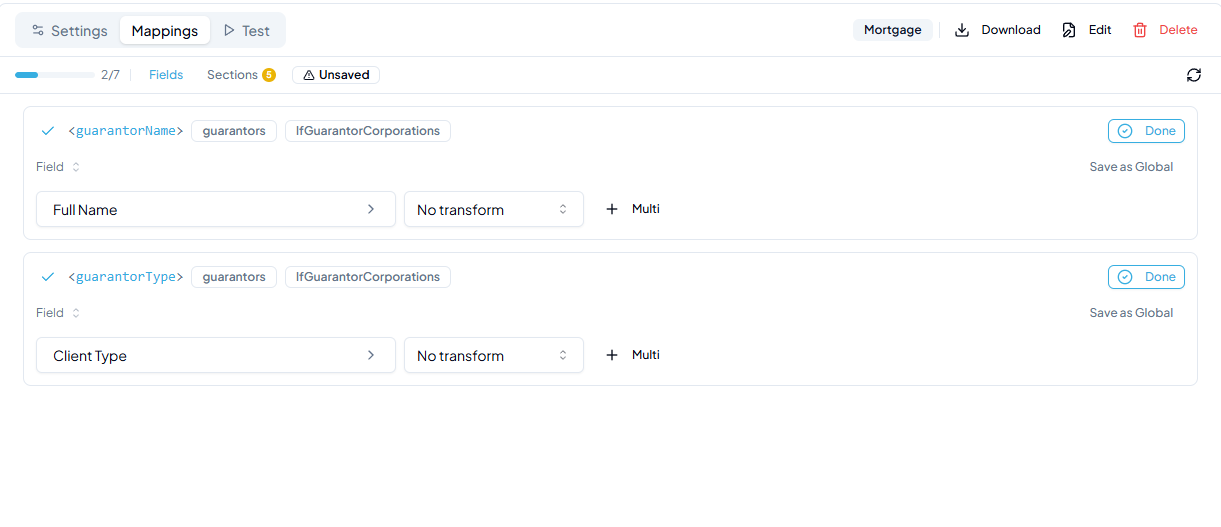
A placeholder that appears multiple times in the document only needs to be mapped once. All occurrences resolve to the same value (or the per-iteration value when inside a loop).
Settings and Test
Two buttons in the template's header open over the list rather than replacing it, so what you are working on stays in view:
- Settings holds where the template Shows on, its placeholder delimiter, and the dropzone for replacing the .docx file. Opening it puts the template in edit mode, so what you change there is saved or discarded with your other edits.
- Test opens a panel on the right that runs the mappings against a real file matter. It changes nothing, and closing it leaves nothing unsaved.
Configuring section mappings
Sections are a special type of placeholder that control how content is printed rather than substituting a value. There are two types:
- Loop: the content inside the section repeats once for each item (e.g. once per guarantor).
- Conditional: the content inside the section only prints if the condition is true (e.g. only if the guarantor is a company).
Sections have a strict syntax. They must appear as a pair: an opening placeholder starting with # and a closing placeholder starting with /, both containing the same keyword. For example:
<#guarantors>opens the section,</guarantors>closes it.
Sections are mapped in the same list as the fields: each one heads its own group, and the row at the head of that group shows its opening and closing placeholders. Click that row and select the appropriate loop or conditional. For the sample template in this guide the correct mappings are:
<#guarantors>→ Each Guarantor<#IfGuarantorCorporations>→ Guarantors → Is Company<#IfGuarantorIndividual>→ Guarantors → Is Individual<#IfAnyGuarantorIndividual>→ If Any Guarantor Is Individual<#IfAnyGuarantorCorporation>→ If Any Guarantor Is Company
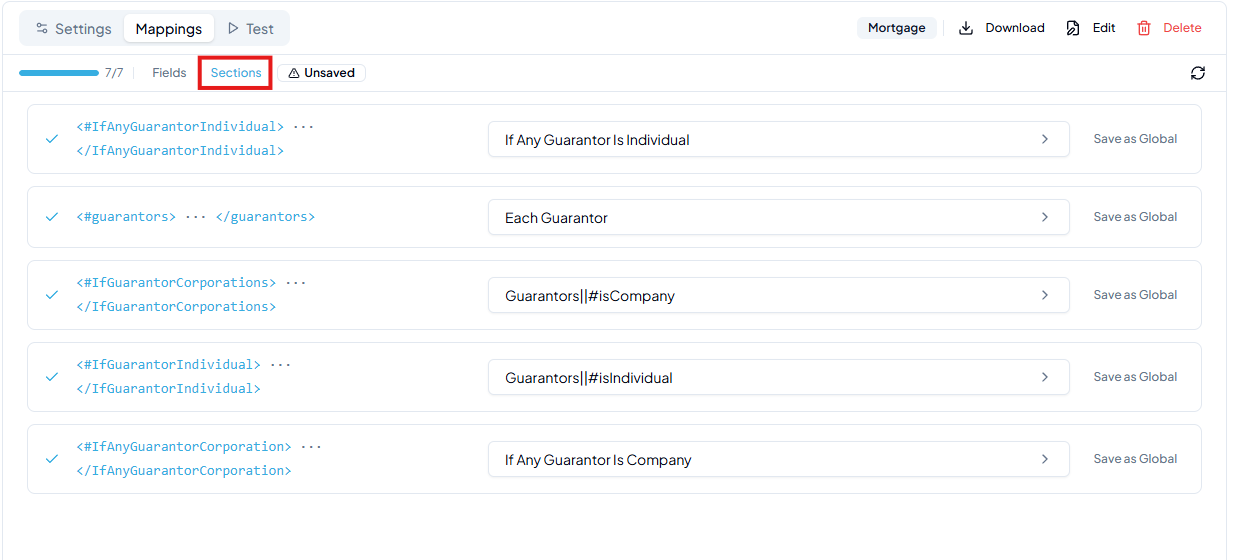
Click Save after mapping all sections.
Generating a document
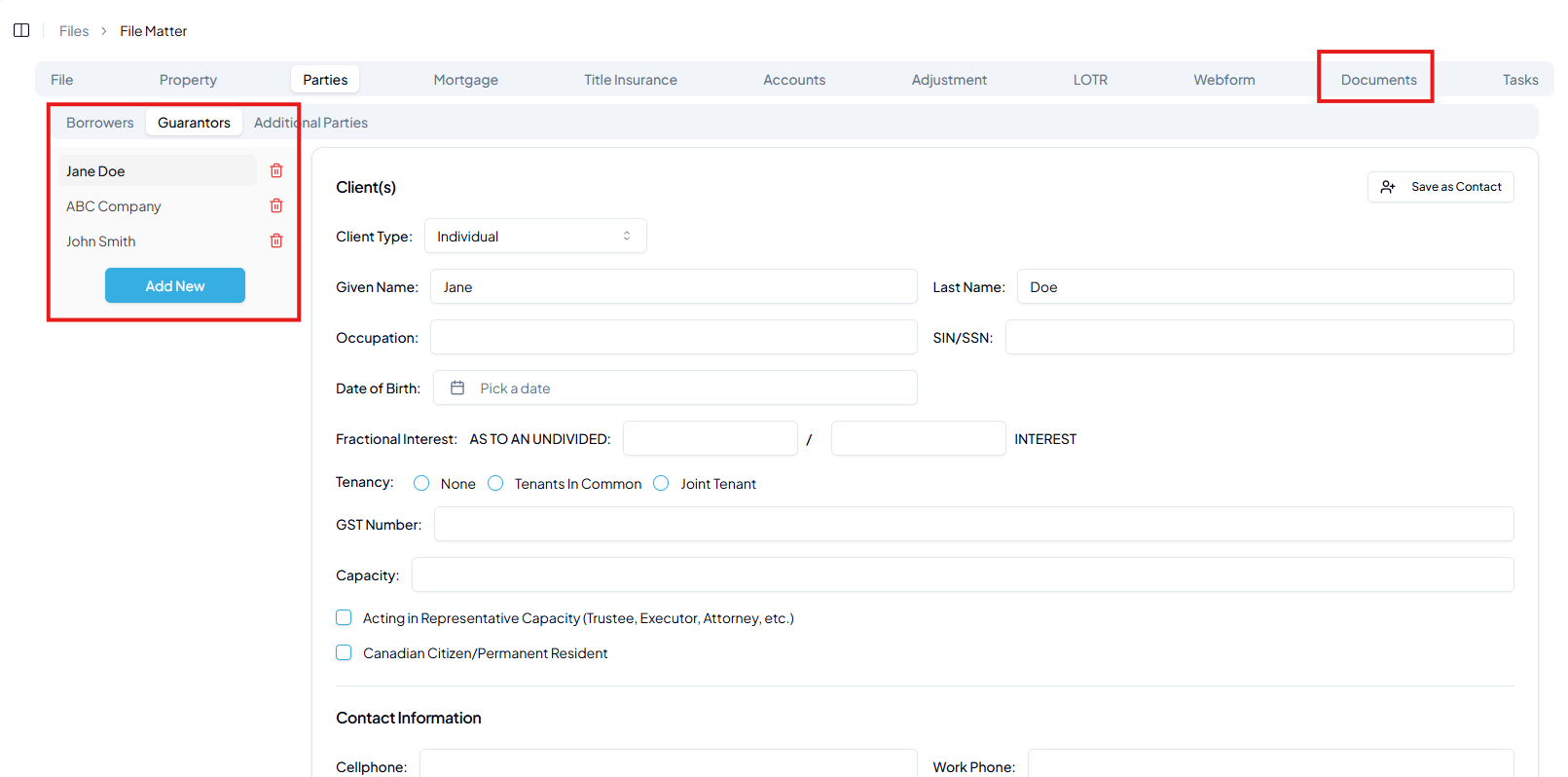
- 1Open a file matter and fill in the relevant data (parties, mortgage fields, disbursements, etc.).
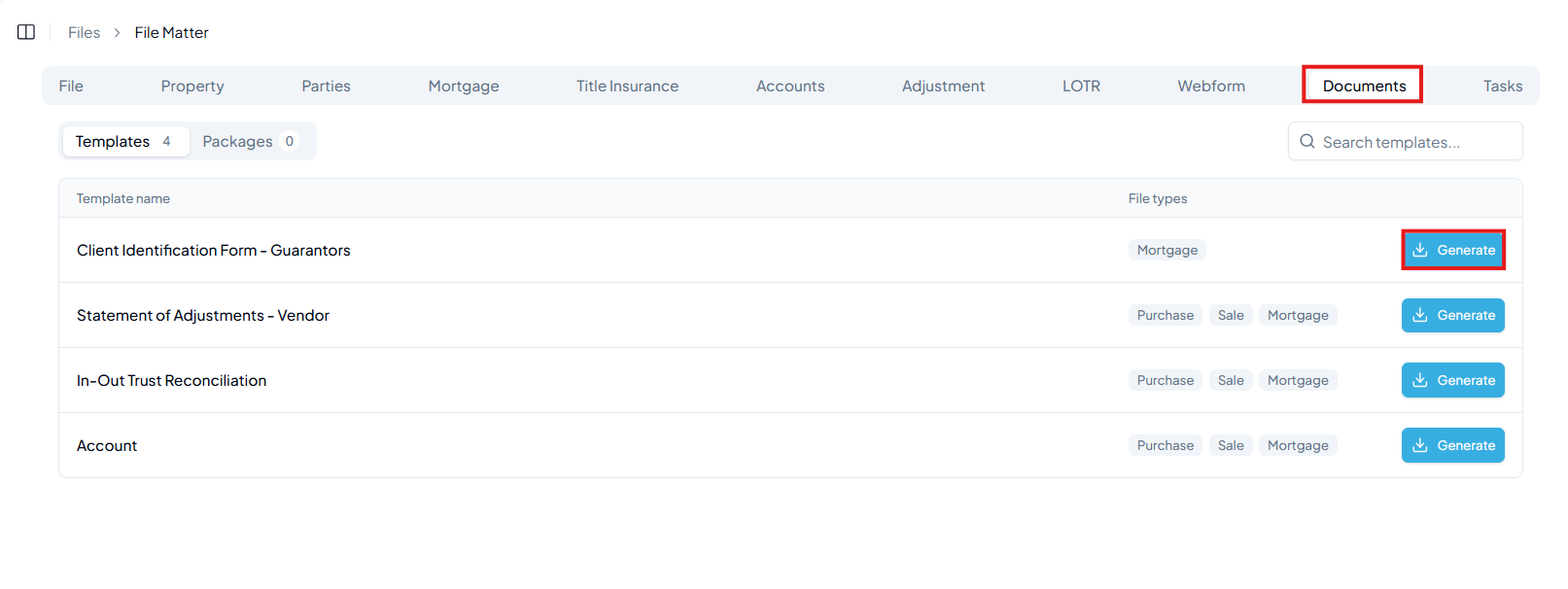
- 2Go to the Documents tab. Your uploaded template will appear in the list.
- 3Click Generate. The system substitutes all placeholders and downloads the filled .docx.
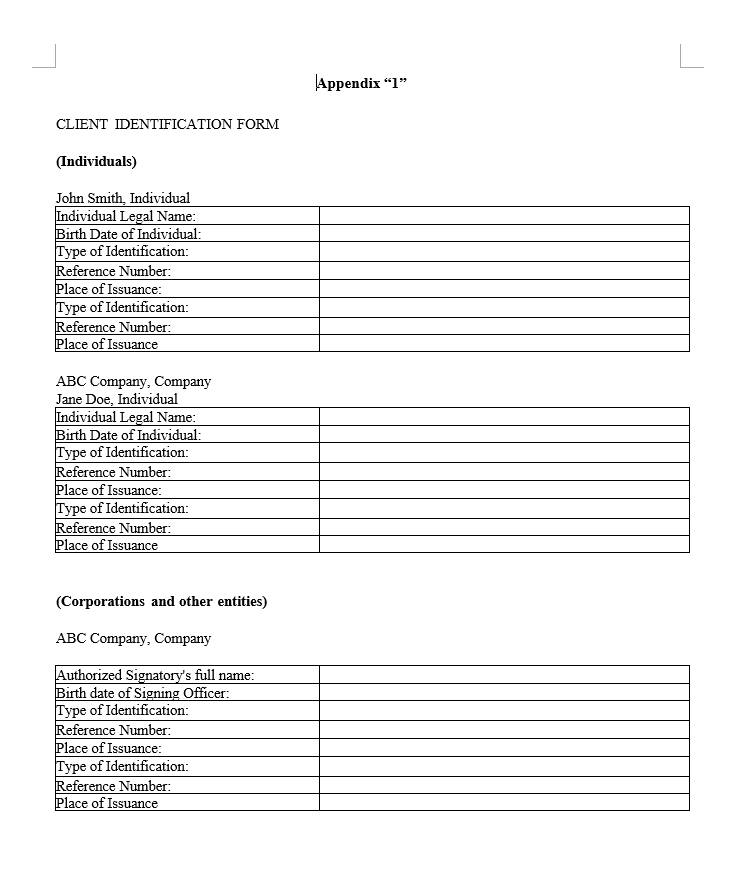
The output loops through all three guarantors. The Individuals section prints once per guarantor, and the Corporations section prints only for ABC Company:
Where to go next
- Field & section mappings to go deeper on loops, conditionals, per-item fields, and table loops.
- Delimiter settings to change the global delimiter or set a per-template override if your documents use a different format.
- Global field mappings to map common placeholders like
<date>once and have every new template pick them up automatically. - Testing a template to run all mappings against a real file matter and verify values before generating a live document.