
Field & section mappings
Map placeholders to file-matter data, loop over parties, and show or hide content with conditionals.
Field mappings
A field mapping is a direct 1-to-1 substitution: the placeholder is replaced with the corresponding value from the file matter.
<guarantorName>mapped to Guarantors → Full Name becomes John Smith in the output.- A placeholder with no mapping renders as blank. It does not produce an error; it simply disappears from the output.
- A placeholder that appears multiple times only needs to be mapped once. When inside a loop (see below), its value changes per iteration.
Section mappings
A section mapping is a special placeholder that does not produce a value. It controls how or whether the content within it is printed. There are two types: loops and conditionals.
Sections use opening and closing tag pairs:
- Opening tag starts with
#:<#guarantors> - Closing tag starts with
/:</guarantors> - Both tags must use the exact same keyword. Mismatched keywords cause an upload error.
Section mappings are configured on the section's own row in the mapping list, at the head of the group holding its fields:
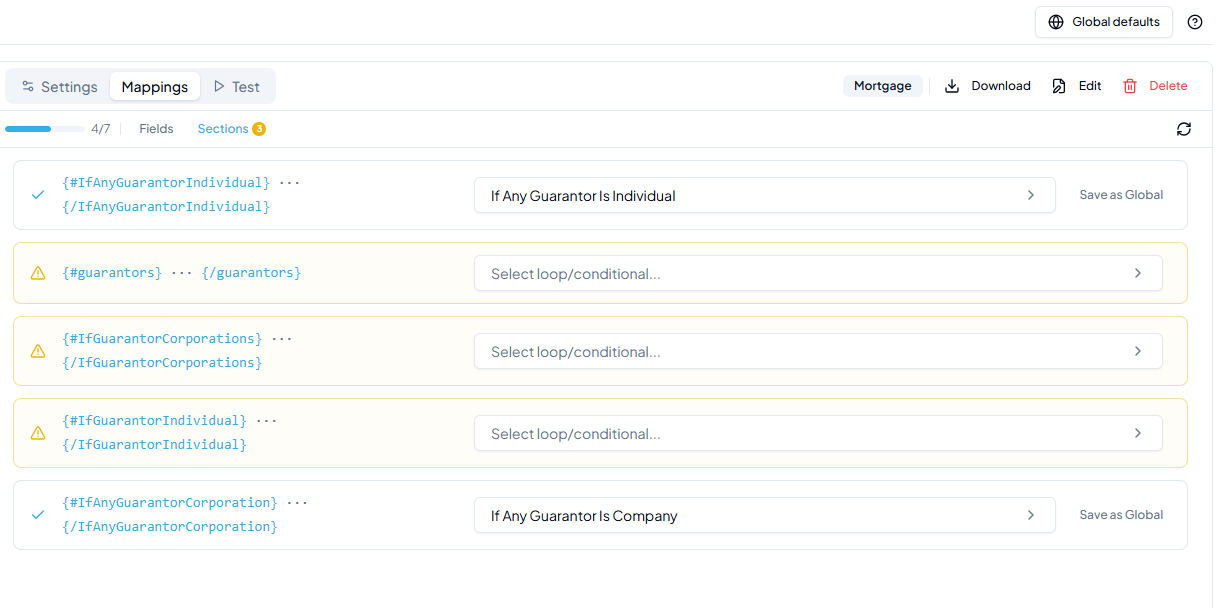
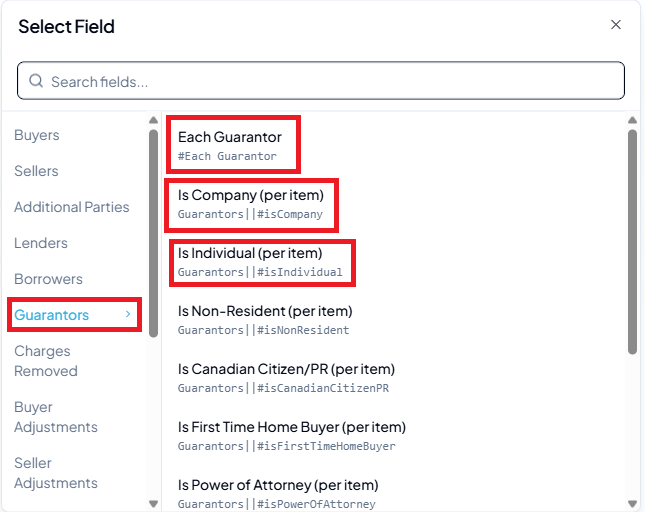
Click Select loop/conditional… on each row and pick the appropriate data source:
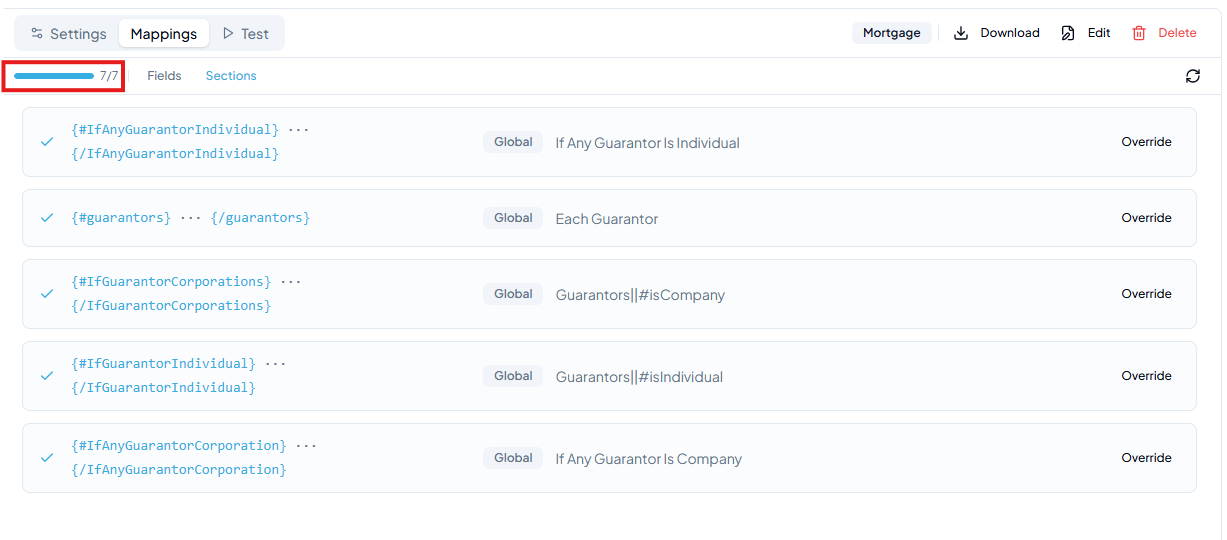
Once all sections are mapped, the progress bar would reach 7/7.
Loop sections
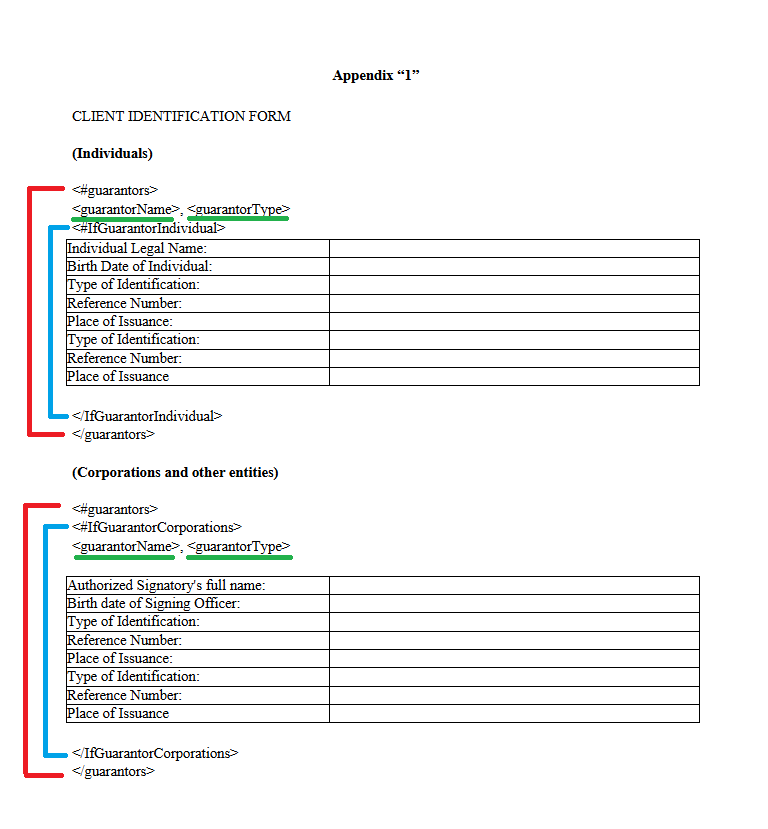
Everything between <#guarantors> and </guarantors> repeats once per item in the mapped list. If there are 3 guarantors, the entire block prints 3 times.
- Field placeholders inside a loop resolve to the value for that iteration. For example,
<guarantorName>is John Smith on pass 1, ABC Company on pass 2. - Field placeholders outside a loop always resolve to the same single value.
- If the loop list is empty, the entire block is omitted from the output.
Section context on mapping rows
Each field mapping row shows small tags for every section the placeholder is nested inside. This lets you see at a glance whether a placeholder is inside a loop, a conditional, or both.
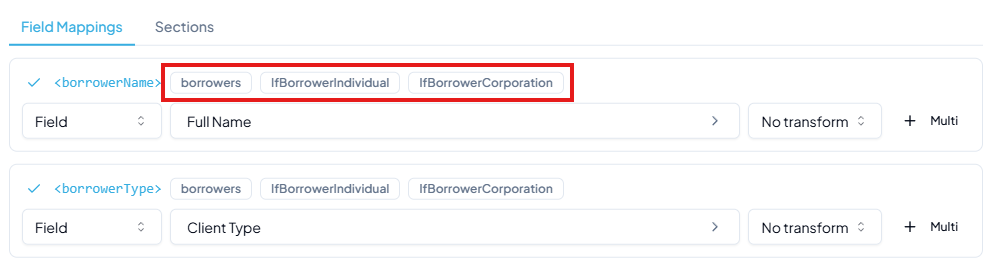
- A tag matching a loop name (e.g.
borrowers) means the placeholder repeats once per item in that list. - A tag matching a conditional name (e.g.
IfBorrowerIndividual) means the placeholder only prints when that condition is true. - A placeholder nested inside multiple sections shows a tag for each one.
What the picker lists
The picker lists only the categories a file of the template’s file types collects — a Lending template is not offered Commissions or Land Value. If a field you need is hidden, switch on Show all fields at the top of the picker. Anything already mapped stays under Current: whether or not its category is shown. A template with no file type set is offered everything.
Per-loop-item fields
In the Select Field picker, fields that carry a path with [i] in the subtext (e.g. buyers[i].fullName) are per-loop-item fields. They resolve to a different value on each loop iteration.
![Select Field picker showing Buyers category with fields buyers[i].fullName, buyers[i].givenName, buyers[i].lastName and others](/docs/templates/loops-image10.png)
- These fields only make sense inside a loop section. Outside a loop there is no iteration context to resolve against.
- If you map a per-loop-item field to a placeholder that is not inside any loop, the mapping editor shows a warning to flag the mismatch.
- A regular (non-
[i]) field can also be used inside a loop. It will resolve to the same single value on every iteration.
Listing only some of a list
A loop row and a joined-list row both ask Which of themwhen you expand them. Every one of them is the default and prints the whole list. Only some of them opens a rule over the list’s own fields and yes/no checks, and the row then prints only the items the rule keeps.
- A discharge table over
#Each Charge Removedfiltered to Nature of Charge is MORTGAGE prints a row for each mortgage on title and leaves the assignments of rents out. The collapsed row says so: “Repeats once for every charge removed where Nature of Charge is MORTGAGE.” - A filter belongs to the row, not to the list, so a template can hold two loops over the same list filtered different ways — one table for the mortgages, another for everything else.
- A joined list filters the same way: a joined balance over Charges Removed filtered to mortgages adds up only the mortgages.
- A filter with a field chosen but no comparison yet is not a filter: the row says “filter not finished” and the list prints whole, rather than refusing to save.
- On the Test tab a filtered loop reads 2 of 3 items so you can see what it left out. A filter that matches nothing reads 0 of 3 items and the row goes blank.
Conditional sections
Content inside a conditional section only prints when the mapped condition evaluates to true.
<#IfGuarantorIndividual>→ the block renders only when the current guarantor is an individual.<#IfGuarantorCorporations>→ the block renders only for corporations.- Conditionals can be nested inside loops: the outer loop iterates every guarantor, and the inner conditional picks the right block for each one.
<#ShowDisclaimer> works just as well. Using “If” is recommended because it makes the intent clear at a glance. Whatever you choose, the name is only a label: every conditional gets its meaning from the mapping you give it on the template’s Mappings tab.The colour-coded diagram below shows how a Client Identification Form template is structured, with the red outer loop, blue inner conditionals, and green field placeholders:
Placement matters
Where you place a field placeholder relative to a conditional determines whether it always prints or only prints conditionally.
- A placeholder outside a conditional prints for every loop iteration, regardless of the condition. In the guarantor example,
<guarantorName>outside<#IfGuarantorCorporations>means every guarantor's name prints in that section, including individuals. - A placeholder inside a conditional only prints when the condition is true.
What the output looks like
With 3 guarantors (John Smith as individual, ABC Company as corporation, and Jane Doe as individual), the generated document shows:
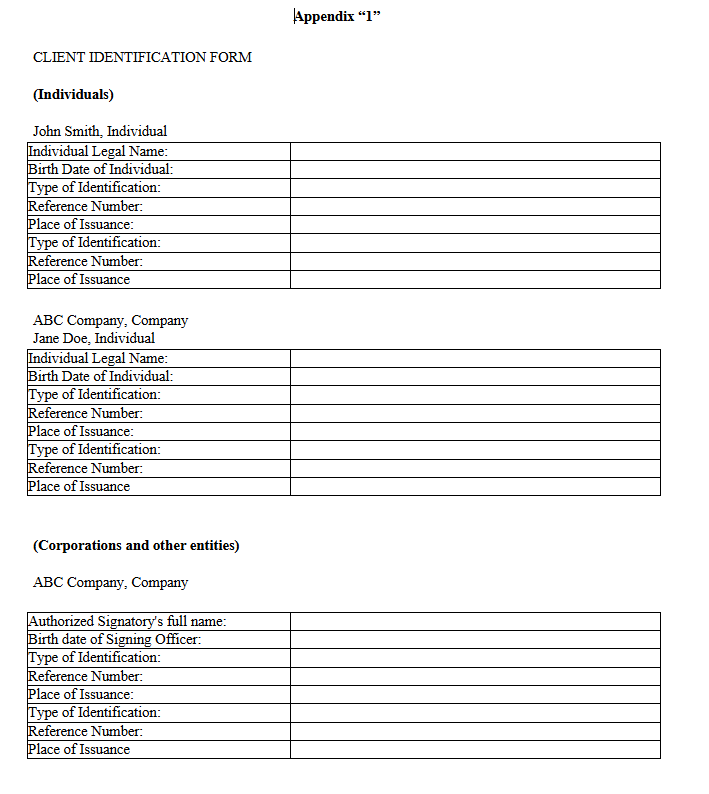
- In the Individuals section, all three names print, including ABC Company. Because
<guarantorName>sits outside<#IfGuarantorIndividual>, it resolves for every loop iteration regardless of client type. Only the ID table below it is inside the conditional, so ABC Company gets its name printed but no individual table. - In the Corporations section,
<guarantorName>sits inside<#IfGuarantorCorporations>, so only ABC Company prints there, with its corporation table.
Looping inside tables
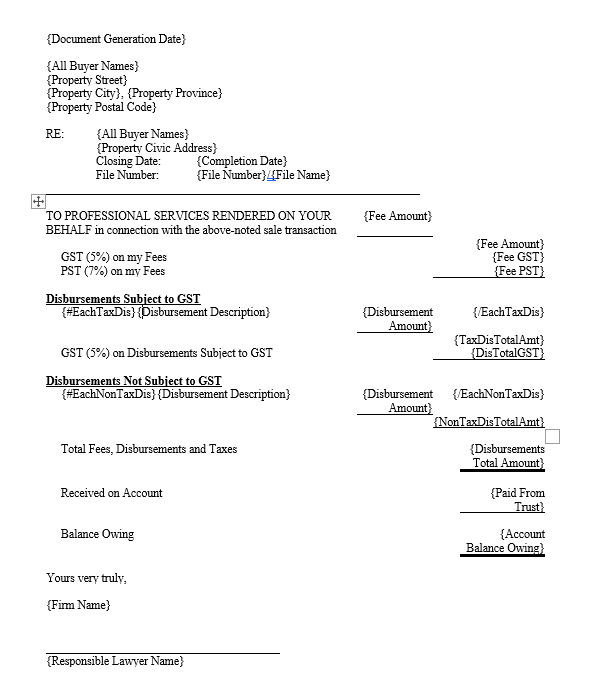
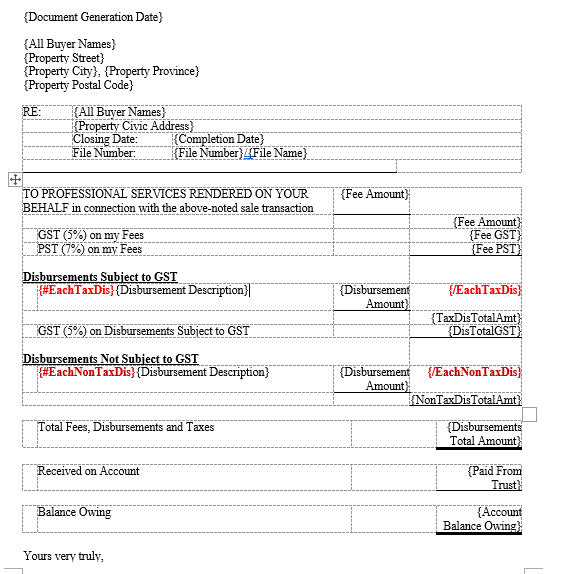
Loop sections work inside Word tables, but the opening and closing tags must be placed in the same table row. The system treats that row as a template row and duplicates it once per loop item.
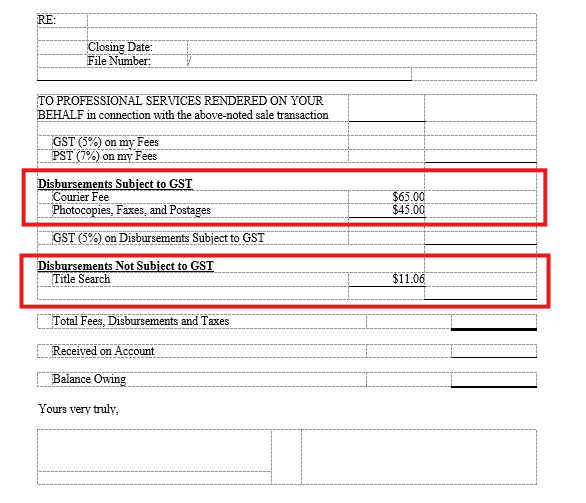
Here is an Account Statement template with two loop rows: one for taxable disbursements, one for non-taxable:
Enable Table Layout → View Gridlines in Word to see row boundaries clearly while authoring (gridlines don't print):

With gridlines visible you can clearly see the loop tags are in the same row, opening at the start and closing at the end:
- Splitting a loop pair across two rows causes an upload error.
- If the loop is empty (no disbursements), the template row does not appear in the output at all.
Configuring table loop mappings
Map the section pairs on their own rows in the mapping list, one row per loop:
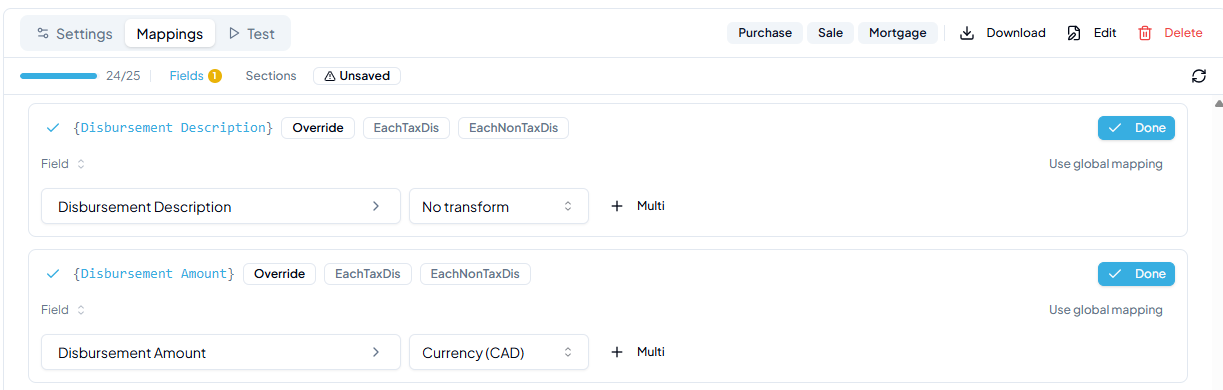
Field placeholders inside the loop (description, amount) are mapped on the Field Mappings tab as normal:
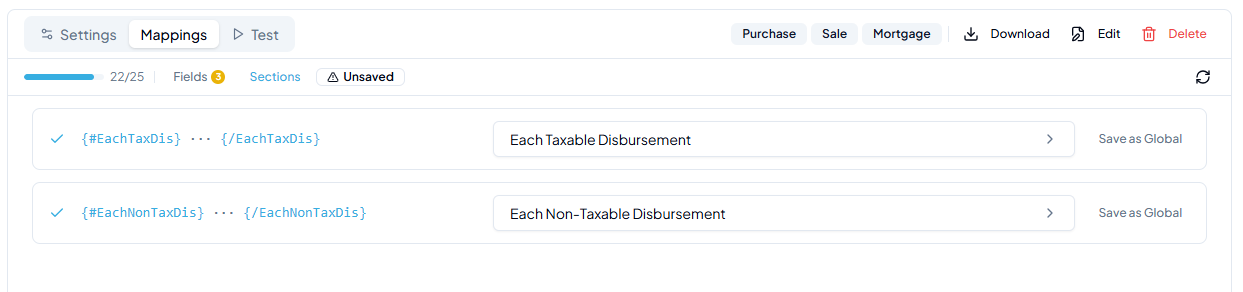
Testing table loops
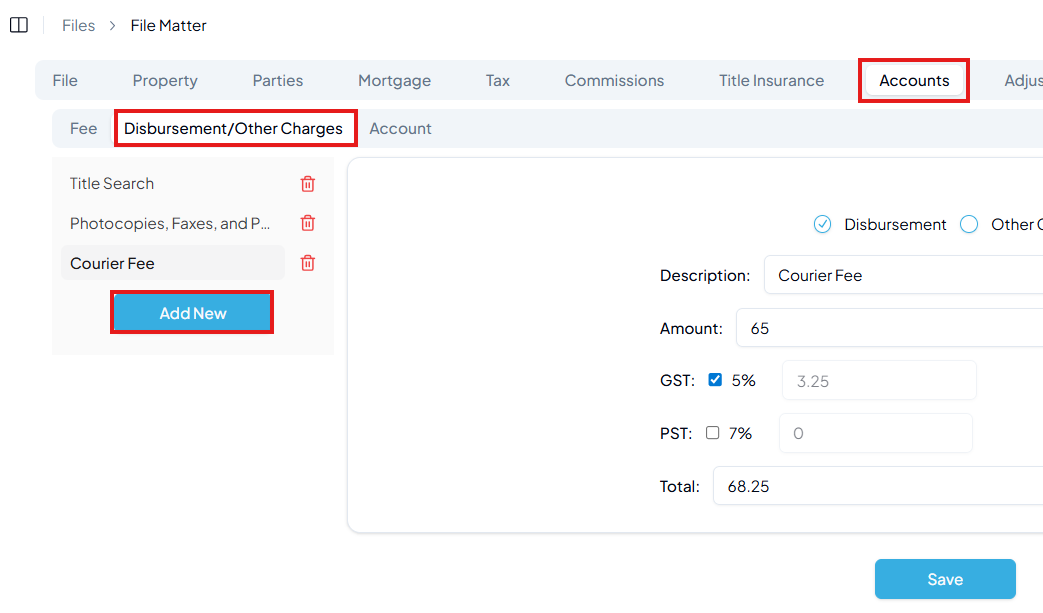
To test properly, add disbursements to the file matter first. Go to Accounts → Disbursement/Other Charges → Add New:
Then generate from the Documents tab:
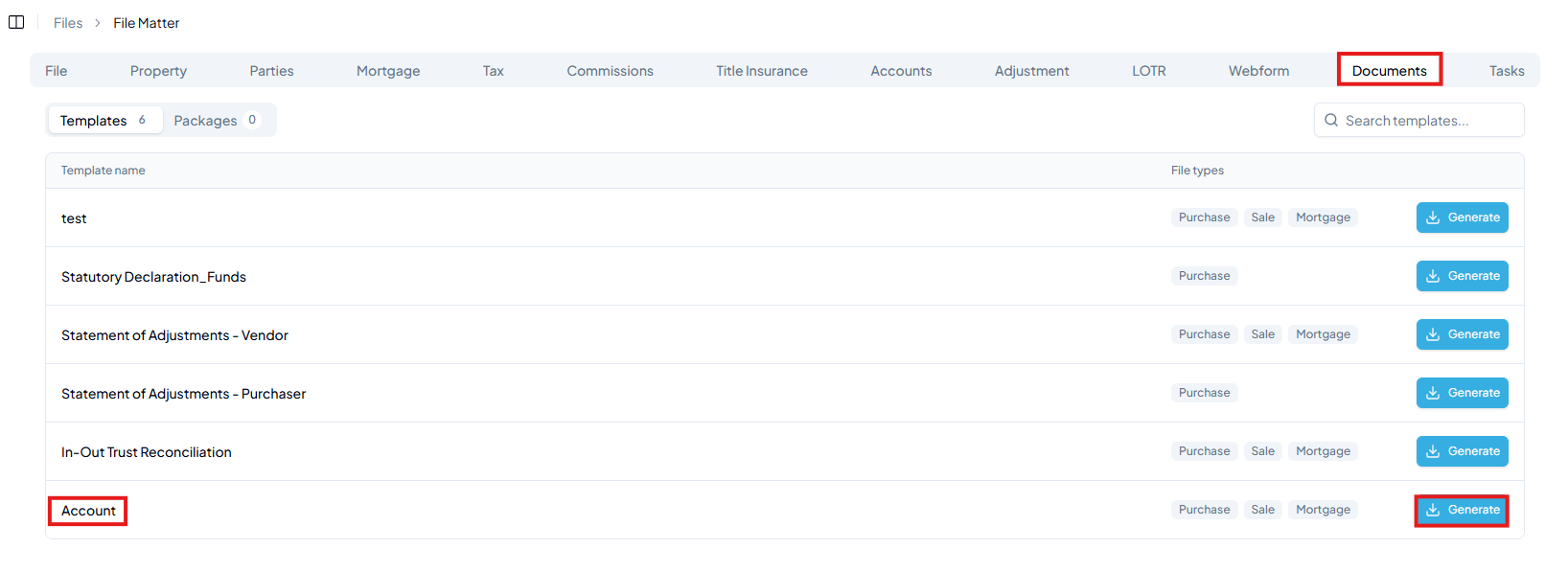
The output repeats the loop row once per disbursement, sorted into the correct taxable / non-taxable section:
Signature blocks
A signature block is a placeholder like any other: name it whatever makes sense to you, put it on a line of its own, then map it.
{Client Signatures}It has to have that line to itself — the app replaces it with a whole table of signature lines, one cell per signer, so it cannot share a line with other text. You do not build that layout in Word. The only setting is whether signatures sit one or two to a line; two is the default, and one suits a page where each signer needs the full width. Three would leave under two inches for a name, a signature and Authorized Signatory beneath it, so it is not offered.
Who signs
In the mapping row, open the field picker and pick one of the signature options. That single choice says both that the placeholder is a signature block and who signs it; there is no second question.
Signatures of Clients is the one to reach for: it works out who your client is from the file type, so you do not have to pick a party list per template.
- Purchase → the buyers
- Sale → the sellers
- Order to Pay → the signing parties
- Mortgage, Lending, Payout → the borrowers
The rest — Signatures of Buyers, Sellers, Borrowers, Guarantors and Lenders — name one party outright. That is the right choice for a document the other side signs, for a guarantee, or for one the lender executes itself, such as a commitment letter.
A named party only exists on some file types: there are no buyers on a Sale file. Pick one this template's file types never fill and the row says so, because the block would print nothing on every file it could be used with. It warns rather than refuses — a template covering several file types can reasonably sign on one side only, and print nothing on the rest.
Guarantors are never included in Clients, on any file type. A document a guarantor has to sign needs its own block mapped to Signatures of Guarantors.
Because the name is yours to choose, one template can carry more than one block over the same signers — an execution page two to a line and an acknowledgment one to a line, each with its own placeholder.
Layout is set in the Signatures tab, which lists every block in the template; the mapping row links straight to it.
How each signer prints
- An individual gets a signature line with their name beneath it.
- A company gets its name, then a Per: line, then Authorized Signatory.
Which one a signer gets follows from their client type on the party tab. The preview before generating draws each signer's cell in the form it will print in, so you can check it without opening the document.
One line per person who signs
A company can have more than one person sign for it. Record them under Signatories on the party, with a position each, and the block prints one signature line per name instead of one for the company. A company with none recorded prints a single line exactly as before, so nothing changes on a file until you fill them in.
How the signers are arranged
Signatures per line sets how many sit side by side — one to four, on the template's Signatures tab, or firm-wide in Template settings.
Individuals and companies never share a line, whatever that number is. A company is the taller of the two — its name sits above a Per: line for each signatory — so beside an individual the two would not line up. Where the file has both, the individuals fill their lines and the companies start fresh below. Signing order is kept, so a company recorded between two individuals still prints between them.
Signature styles
How a signature prints is a style. There are two libraries of them — one for individuals, one for companies — because the two forms vary independently, and a firm wanting two of each would otherwise need four. Both live in Template settings → Signatures, where one style in each library is the firm default.
A template can choose its own instead, on its Signatures tab. Most documents want the anonymous Authorized Signatory line; some want the signatories named, and some want a surname alone. All can be wanted on the same file from the same parties, which is why the choice belongs to the document rather than to the party. A template that chooses nothing follows the firm default, and picking the Firm default option puts it back.
A style holds the cell as it prints, with a live preview beside it:
- {line} draws a signature rule, {company} is the company, and {name} is a person.
- In a company style, everything between {#signatories} and {/signatories} repeats once per signatory, with {name} and {position} naming the signatory inside it. Outside the loop there is no one signatory to mean, so {name} is empty there and the line it sat on is dropped.
- In an individual style, {firstName} and {lastName} print the name in parts — a surname-only signing line is just {lastName}.
- Add :upper to any of them to capitalise it, as in {lastName:upper}.
- Wrap text in ** for bold, and indent with spaces. Where the name sits is up to you — above the signature lines, or below them.
A signatory with no position prints their name alone, with no trailing comma. Saving is refused if a style has no {line} in it, since that would produce a signing page with nothing to sign on. The style the app ships cannot be edited or deleted, so there is always something to fall back to.
Columns inside a style
Some execution pages put more than one thing on the signer's row: a witness column on the left, a column of brackets, then the signature itself. A style draws that by writing ||| alone on a line, which starts a new column. ||| 3 gives the column it starts 3 twelfths of the block's width, and columns without a number share what is left. A style holds at most four columns, and a signer whose style has columns takes a full row of the block to itself.
Where the {#signatories} loop sits decides what repeats:
- Inside one column: that column's lines repeat per signatory. One witnessed row per company, the signatories stacked in their own column beside one shared witness.
- Wrapping the whole style (the markers as its first and last lines): the entire row repeats per signatory, so each one gets a witness of their own. Writing {signatory.name} or {signatory.position} with no markers at all means the same thing: the whole row repeats.
In a block composed of several page columns (the divided form on a Signature box row), a style's own columns flatten: its parts print one under the other, since each side of the page has only one column to give.