Delimiter settings
Choose which characters wrap your placeholders, globally for all templates, or per template when one file uses a different format.
Global delimiter
The global delimiter applies to all newly uploaded templates. The default is {placeholder}. If your templates use a different format, change the global setting before uploading.
- 1Go to Templates in the sidebar and click Template settings in the top-right.
- 2On the Delimiters tab, select the delimiter that matches your template format.
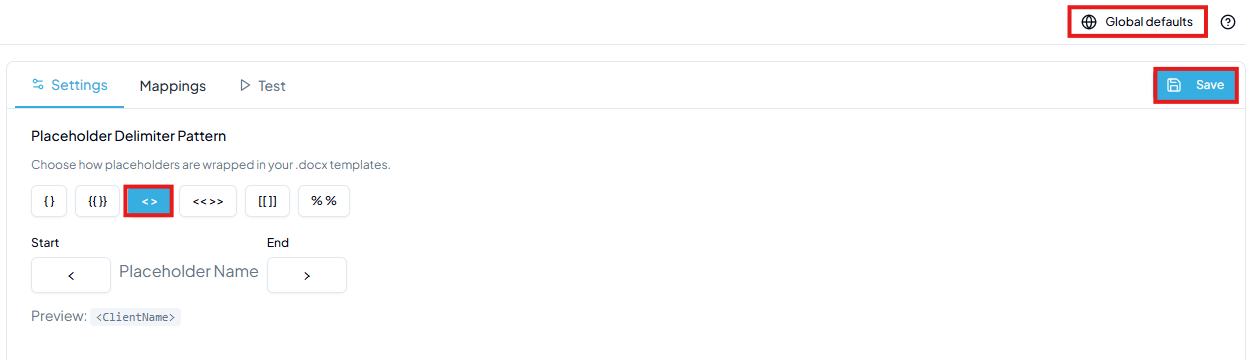
- 3Click Save. All templates uploaded from this point will be scanned using the new format.
Per-template override
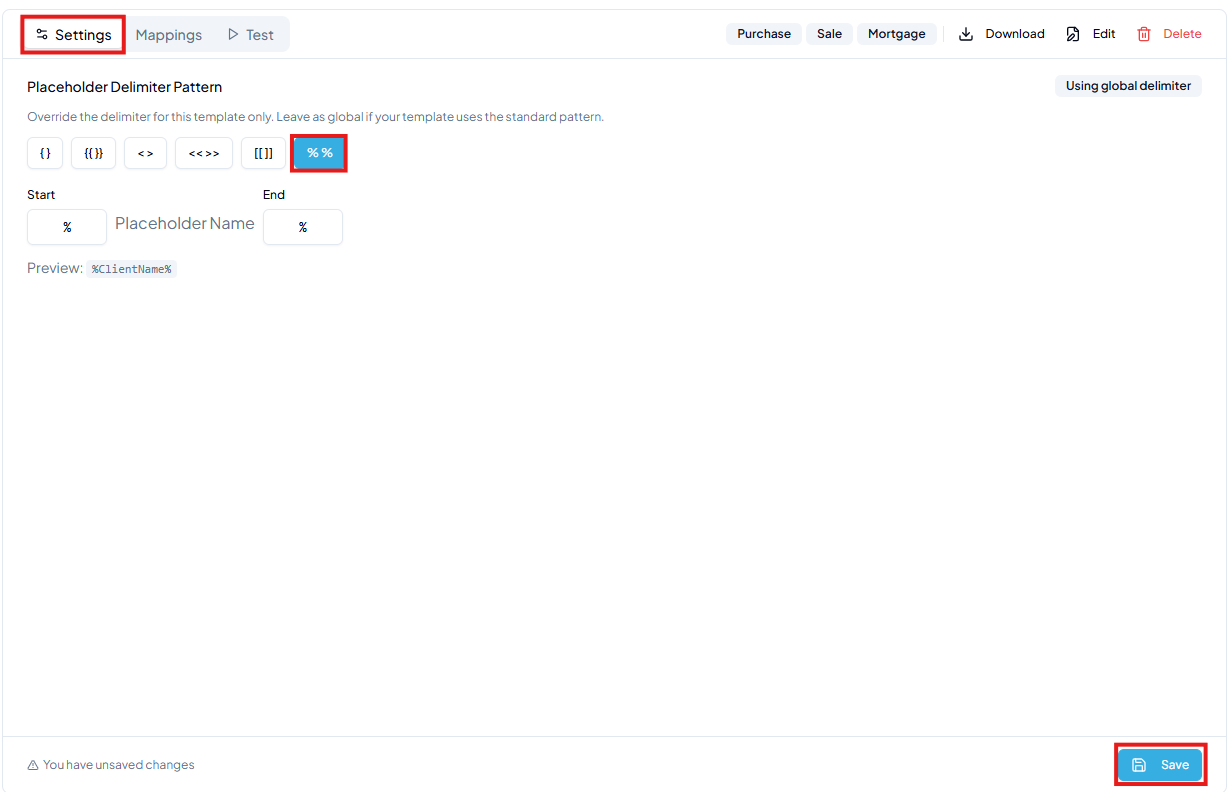
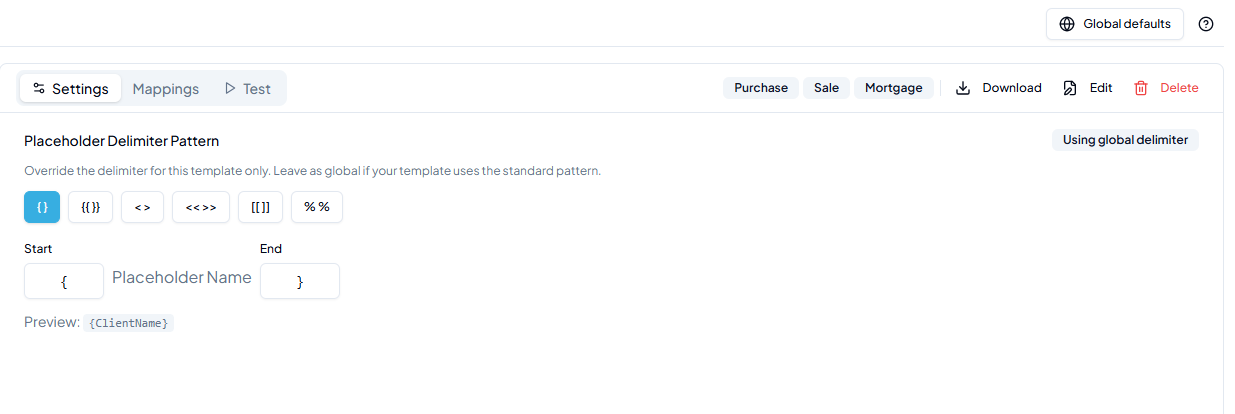
If one template uses a different format from the rest, set a per-template delimiter instead of changing the global setting. Open the template's configuration, go to Settings, and select the override format:
After saving, the panel shows a Template override badge, a clear indicator this template uses a custom delimiter:
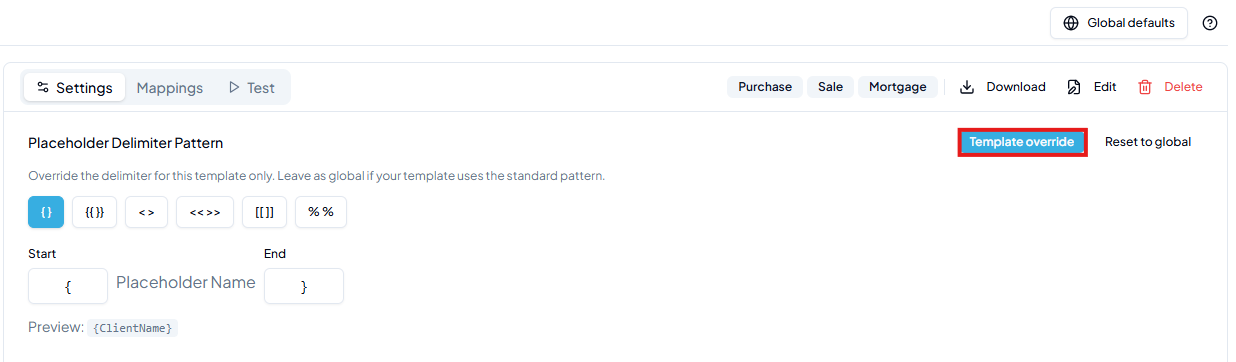
- Other templates in your library are unaffected.
- Click Reset to global to remove the override and revert to the global setting.
Rescan
A template is only scanned for placeholders at upload time. If the delimiter setting changes afterwards, click Rescan to re-detect placeholders using the current format.
- 1Open the template's configuration panel.
- 2Click Rescan (top-right of the Mappings tab).
- 3Re-map any newly detected placeholders and save.
Common scenarios
Scenario 1: global changed after upload
You uploaded a template when the global delimiter was {placeholder}, then changed it to <placeholder>. The template's configuration now shows no placeholders:
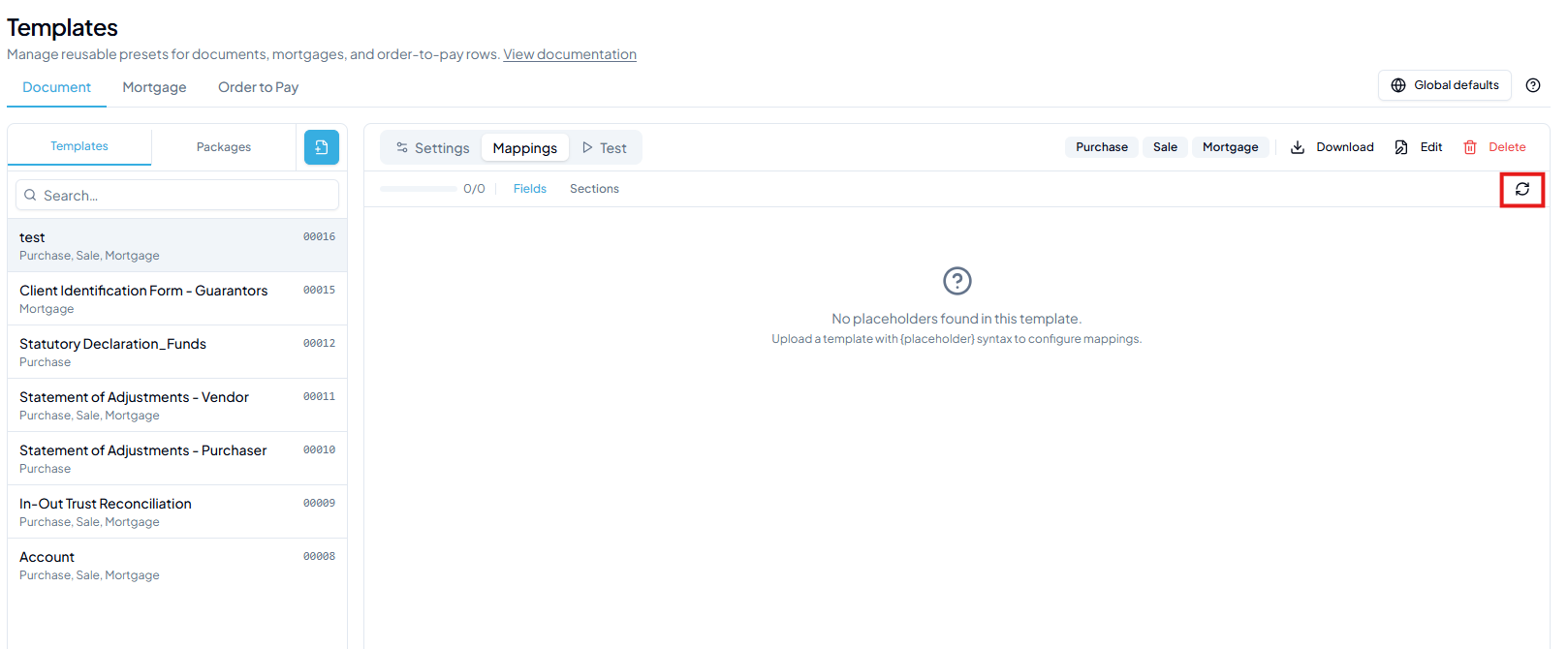
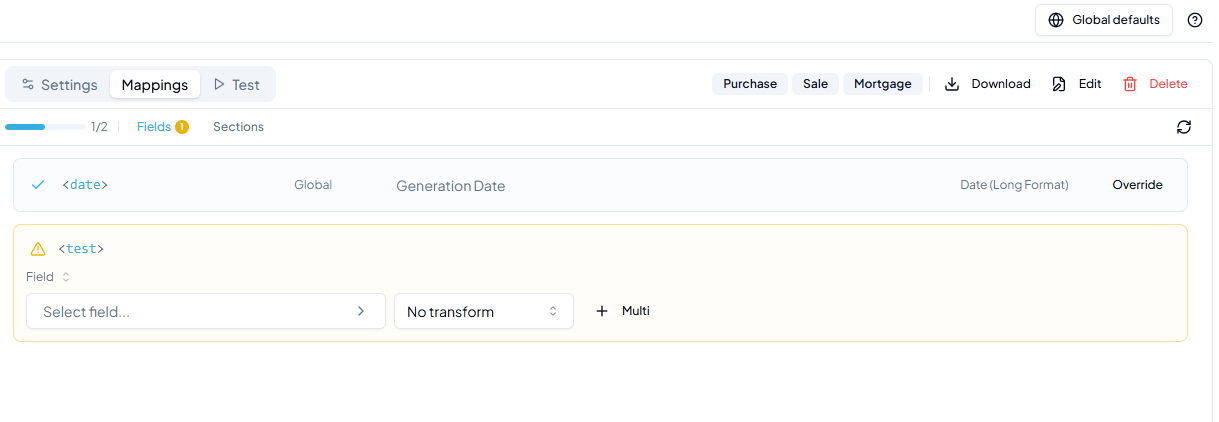
- Fix: click Rescan. The
<placeholder>tokens are now detected. Any global field mappings are applied automatically (shown with a Global badge):
Scenario 2: one template uses a different format
All your templates use <placeholder>, but one legacy file uses %placeholder%.
- Fix: open that template's Settings tab, select the %% delimiter, save, then click Rescan. The
%test%placeholders are now detected: