
Global field mappings
Map common placeholders once and have every new template pick them up automatically.
What are global mappings?
Placeholders that appear across many templates, like <date>, <month>, or <year>, can be mapped once in the global settings so every new template picks them up automatically. When a template is uploaded and a placeholder matches a global mapping, it is pre-mapped and shown with a Global badge with no manual configuration needed.
Setting up a global mapping
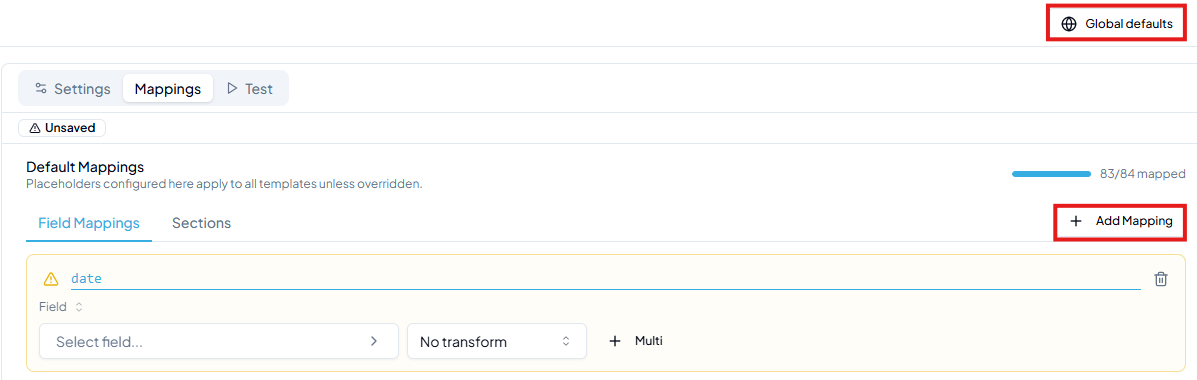
Click Template settings in the top-right of the Templates page to open the global configuration panel.
- 1Go to the Mappings tab, click Add Mapping, and type the placeholder name (e.g.
date).
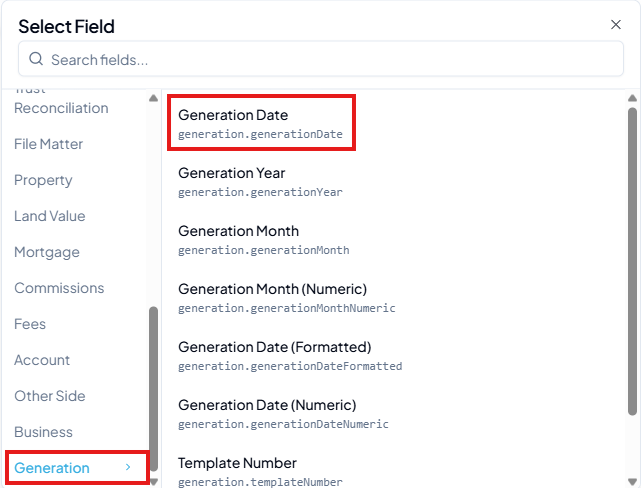
- 2Pick the field (e.g. Generation → Generation Date) and select a transformation if needed (e.g. Date (Long Format)).
- 3Click Save. Any template uploaded afterwards that contains the
dateplaceholder will have it pre-mapped automatically.
Applying to existing templates
Templates uploaded before a global mapping was configured won't pick it up automatically. Click Rescan on the template to re-detect placeholders and apply the current global mappings. See the Delimiter settings page for more on rescan.
Overriding a global mapping per template
If a specific template needs a different mapping for a globally-mapped placeholder, click Override on that placeholder row in the template's mapping panel. The row becomes editable and the global mapping no longer applies to it. To revert, click Use global mapping.