
Testing a template
The Test button in a template's header opens a panel that runs all mappings against a real file matter, so you can see exactly what each placeholder resolves to before generating a live document.
Running a test
- 1Click the template name on the left side to open its mapping panel.
- 2Click Test in the header. A panel opens on the right with the list still visible behind it.
- 3Click the File Matter dropdown and search for the file matter you want to test against by file number.
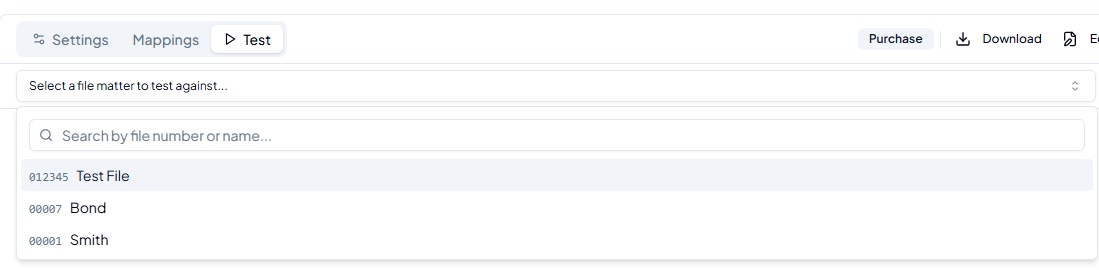
- 4Click Run Test. Every mapping is evaluated against the selected file matter and the results appear below.
Reading the results
After the test runs, a summary bar and a results table appear.
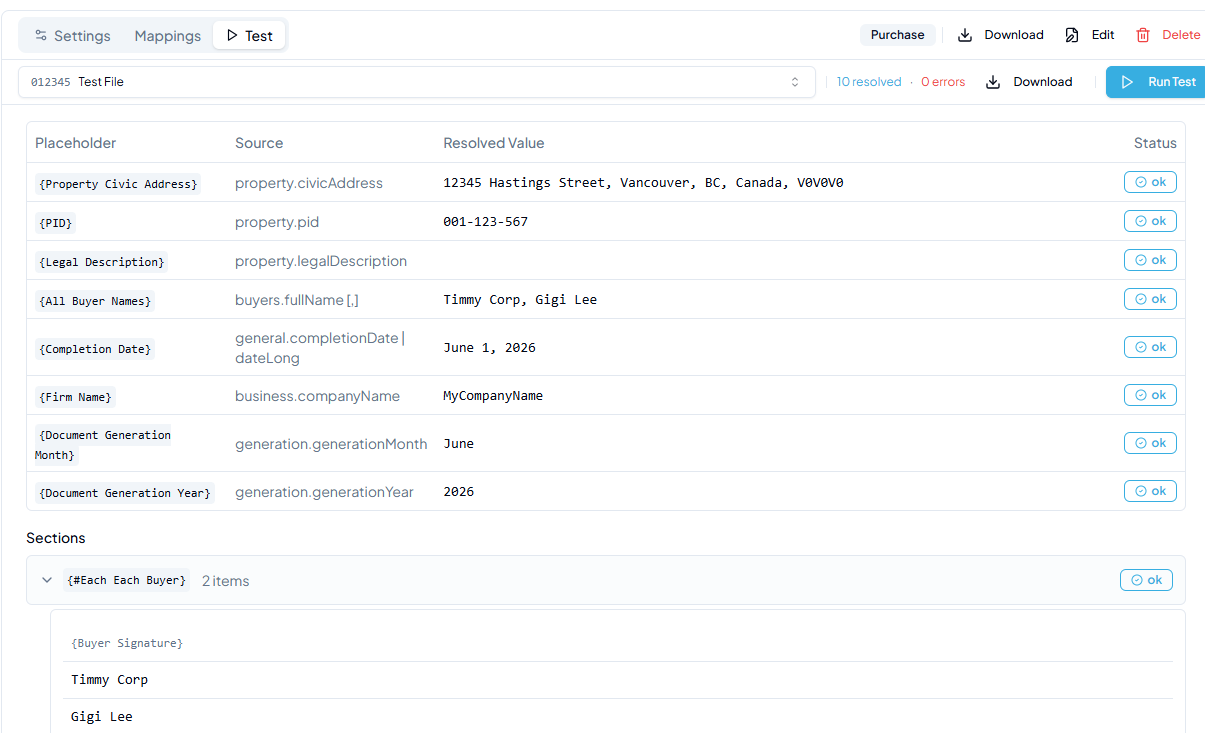
- Summary bar: shows how many placeholders resolved successfully and how many produced errors at a glance.
- Results table: lists each placeholder alongside its source path, the resolved value (what will appear in the generated document), and an ok or error status badge.
- A filtered list: a loop row that lists only some of its items reads “2 of 3 items” — what it printed, of what it chose from — and names the filter beside its kind.
- Download Test Document: generates the actual
.docxfile with all test values substituted in, so you can open it in Word and inspect the final output.
Empty resolved values
A blank Resolved Value column means one of two things:
- The mapping is incorrect. For example, the wrong field is selected or an expression has a typo.
- The value is genuinely empty in the selected file matter. The field exists and the mapping is fine, but no data has been entered for it yet.
Check the field in the file matter before concluding there is a mapping error. Blank values still count as resolved (the status badge shows ok), because the placeholder was found and replaced. It just happens to be empty.
Choosing the right file matter
The File Matter dropdown only shows file matters that match the template's configured file type (Purchase, Sale, Mortgage, etc.).
If you can't find the file matter you want to test against, check two things:
- Template configuration: open the Settings tab and confirm the template is set to the correct file type. If it's set to the wrong type, the file matter you want won't appear.
- File matter type: confirm that the file matter itself is the type you expect (check its file type in the file matter's details).